


HP LaserJet Pro MFP M28w Printer Setup The Ultimate Installation and Configuration Guide
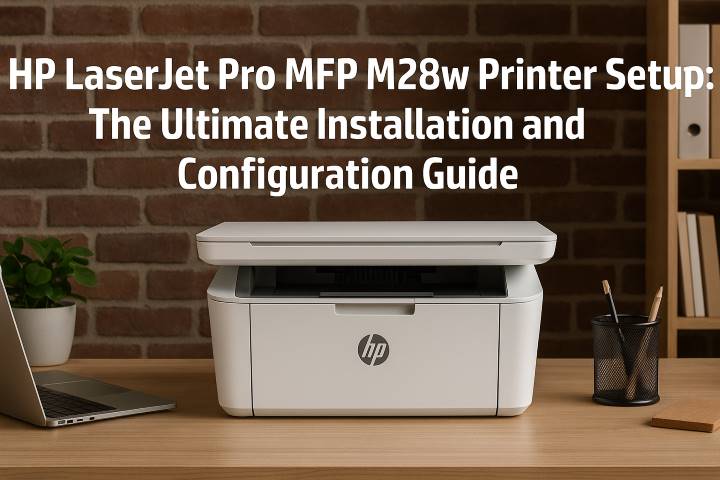
When you invest in a printer, you expect it to deliver sharp results without a fuss. The HP LaserJet Pro MFP M28w does exactly that — it’s compact, efficient, and powerful enough to handle both home and small office tasks with ease. Designed as an all-in-one multifunction printer, it can print, scan, and copy documents while maintaining top-tier laser precision.
But the first step toward unlocking that performance is getting your HP LaserJet Pro MFP M28w Printer Setup done right. This detailed guide covers everything—unboxing, connecting, installing software, and troubleshooting—so you can start printing in minutes.
Let’s get your printer ready for action.
What Makes the HP LaserJet Pro MFP M28w Stand Out
Before we dive into setup, it helps to know why this model has become a favorite among users.
-
Compact size, big performance: One of the smallest laser MFPs in its class, yet it delivers professional-grade prints.
-
Wireless flexibility: You can print from computers, smartphones, or tablets—no cords required.
-
Energy efficiency: With HP Auto-On/Auto-Off technology, it conserves power automatically.
-
High-speed output: Prints up to 19 pages per minute with sharp, clear text.
-
HP Smart App integration: Lets you control everything remotely—from scanning to checking toner levels.
Now that you know what it’s capable of, let’s begin the setup journey.
Unboxing and Initial Preparation
Step 1: Check the Box Contents
When you open your HP LaserJet Pro MFP M28w box, make sure you’ve got:
-
The HP LaserJet Pro MFP M28w printer
-
Power cord
-
USB cable (in some versions)
-
Pre-installed or separate toner cartridge
-
Setup guide and documentation
-
Installation CD (optional, can be skipped if using HP Smart App)
If anything’s missing, reach out to HP support before continuing.
Step 2: Remove Protective Packaging
-
Take the printer out of the box and place it on a flat surface.
-
Remove all visible blue tapes and plastic films.
-
Open the toner compartment and the scanner lid to remove internal packaging.
-
Check the paper tray area too—HP hides a few tapes in there sometimes.
Once it’s free from packing materials, plug in the power cable.
Powering On and Installing Toner
Power On the Printer
-
Plug the printer into a stable wall outlet.
-
Press the power button on the control panel.
-
Wait for the printer to initialize—it might make a few sounds as it calibrates.
Install or Reinstall the Toner Cartridge
If the toner isn’t pre-installed:
-
Open the front toner access door.
-
Take out the toner cartridge from its protective bag.
-
Shake it gently side to side to distribute the toner evenly.
-
Insert it carefully until it clicks into place.
-
Close the door.
That’s the hardware side done. Now, let’s move on to getting your printer connected and talking to your device.
Software and Driver Installation
To enable printing and scanning features, you’ll need to install HP’s official drivers and utilities. There are three main setup options:
-
Wireless (Wi-Fi) connection – Best for mobile and remote printing.
-
USB connection – For direct PC-to-printer communication.
-
Mobile setup via HP Smart App – For smartphones and tablets.
Let’s walk through each option step by step.
Wireless Setup for HP LaserJet Pro MFP M28w
Wireless setup gives you the freedom to print from anywhere within your Wi-Fi network.
Step 1: Prepare Your Printer
-
Make sure the printer is powered on.
-
The Wireless light should blink; if not, hold the Wireless and Cancel buttons together for 5 seconds to reset the connection mode.
Step 2: Install the HP Smart App
-
On your computer or mobile device, download the HP Smart App from:
-
[Microsoft Store] for Windows
-
[App Store] for iOS
-
[Google Play Store] for Android
-
-
Launch the app and sign in (or create a free HP account).
-
Click Add Printer or Set up a new printer.
-
Make sure Bluetooth and Wi-Fi are turned on.
Step 3: Connect to Wi-Fi
-
Select your HP LaserJet Pro MFP M28w when it appears on the list.
-
Choose your Wi-Fi network and enter the password.
-
Wait for the app to confirm connection—the blue wireless light will turn solid once connected successfully.
Step 4: Test the Connection
Try printing a test page through the HP Smart App to confirm that wireless printing is active.
USB Connection Setup
For those who prefer traditional wired connections—especially for office desktops or secure environments—the USB method is quick and reliable.
Step 1: Connect the Cable
-
Plug the USB cable into the printer’s port (at the back).
-
Connect the other end to your computer.
Step 2: Install Drivers
If your system doesn’t automatically detect the printer:
-
Visit the official HP Support site.
-
Search for HP LaserJet Pro MFP M28w drivers.
-
Download and run the full-feature software package.
-
During installation, choose USB Connection as your setup type.
Once installed, print a sample page to verify communication.
Mobile Printing Setup
The HP Smart App turns your smartphone into a portable printing hub.
For Android and iOS Devices
-
Download and open the HP Smart App.
-
Tap the “+” icon to Add Printer.
-
Allow Bluetooth permissions.
-
The app will detect nearby printers — select your HP LaserJet Pro MFP M28w.
-
Follow prompts to connect it to your Wi-Fi network.
Now, you can print documents, images, and PDFs directly from your phone without switching on a computer.
Scanning and Copying with HP M28w
Being an MFP (Multifunction Printer), this device also lets you scan and copy documents easily.
Scanning Using HP Smart App
-
Place the document face down on the scanner glass.
-
Open the HP Smart App on your device.
-
Click Scan.
-
Choose your settings (resolution, color, file type).
-
Tap Scan to start.
You can then save your scanned file to your device or send it by email straight from the app.
Copying Directly from Printer
-
Place the original document on the scanner glass.
-
Press the Copy button on the printer’s control panel.
-
Select the number of copies.
-
Press Start.
In seconds, your copies will be printed.
Troubleshooting Common Setup Issues
Every tech product can hit a snag now and then. Here’s how to fix common problems during or after setup.
Problem 1: Printer Not Connecting to Wi-Fi
-
Ensure you’re using the correct Wi-Fi password.
-
Restart your router and printer.
-
Reset the printer’s wireless settings (hold Wireless + Cancel for 5 seconds).
-
Reconnect using HP Smart App.
Problem 2: Printer Offline on Computer
-
Reboot both the printer and computer.
-
Check the connection type (USB or Wi-Fi).
-
Update or reinstall printer drivers.
-
In Windows, open Devices and Printers → Right-click Printer → Set as Default Printer.
Problem 3: Blurry or Faded Prints
-
Take out the toner and shake it gently side-to-side.
-
Run a cleaning page through HP Smart App.
-
Make sure you’re using HP genuine toner cartridges.
Problem 4: Paper Jam
-
Power off the printer.
-
Open the toner access door and gently remove any stuck paper.
-
Check the paper tray for small scraps.
-
Reload paper neatly before turning the printer back on.
Keeping Firmware Updated
HP regularly releases firmware updates to improve printer stability, add new features, and fix bugs.
How to Update:
-
Open the HP Smart App.
-
Go to Printer Settings → Advanced → Printer Updates.
-
Follow on-screen steps to install any available updates.
This ensures your HP LaserJet Pro MFP M28w always performs at its best.
Maintenance and Care Tips
You’ve set it up—now keep it running like new.
Follow these simple habits to extend your printer’s lifespan:
-
Use genuine HP toner to prevent printhead damage.
-
Clean the exterior and scanner glass with a lint-free cloth regularly.
-
Avoid overloading the paper tray.
-
Keep firmware and software up-to-date.
-
Turn off the printer when not in use for long periods.
Treat your printer well, and it’ll return the favor with years of crisp, jam-free performance.
Why Choose the HP LaserJet Pro MFP M28w
The M28w has earned a reputation for blending simplicity with power. Here’s what makes it an unbeatable choice:
-
Compact design: Fits even on a crowded desk.
-
High-speed laser printing: Up to 19 ppm, perfect for everyday tasks.
-
Wireless convenience: Works with phones, tablets, and PCs.
-
Low maintenance: Minimal moving parts mean fewer breakdowns.
-
Energy-saving: Automatically adjusts power consumption.
For professionals, students, and small business owners, it’s a perfect mix of quality, speed, and cost-efficiency.
Final Thoughts
Setting up the HP LaserJet Pro MFP M28w Printer might seem technical at first glance, but HP has designed the process to be effortless. With a simple unboxing, quick app-based configuration, and modern wireless connectivity, you’ll be printing high-quality pages in no time.
This printer is proof that small doesn’t mean weak—it’s powerful, portable, and perfect for those who value both performance and simplicity.
Whether you’re printing study notes, invoices, or creative documents, the M28w delivers consistent, laser-sharp output every time.
Follow this guide carefully, and your HP LaserJet Pro MFP M28w Printer Setup will be flawless—no tech degree required.

 English
 Arabic
 French
 Spanish
 Portuguese
 Deutsch
 Turkish
 Dutch
Dutch
 Italiano
 Russian
 Portuguese (Brazil)
 Greek
Greek