


Thunderbird Inbox Not Showing Messages
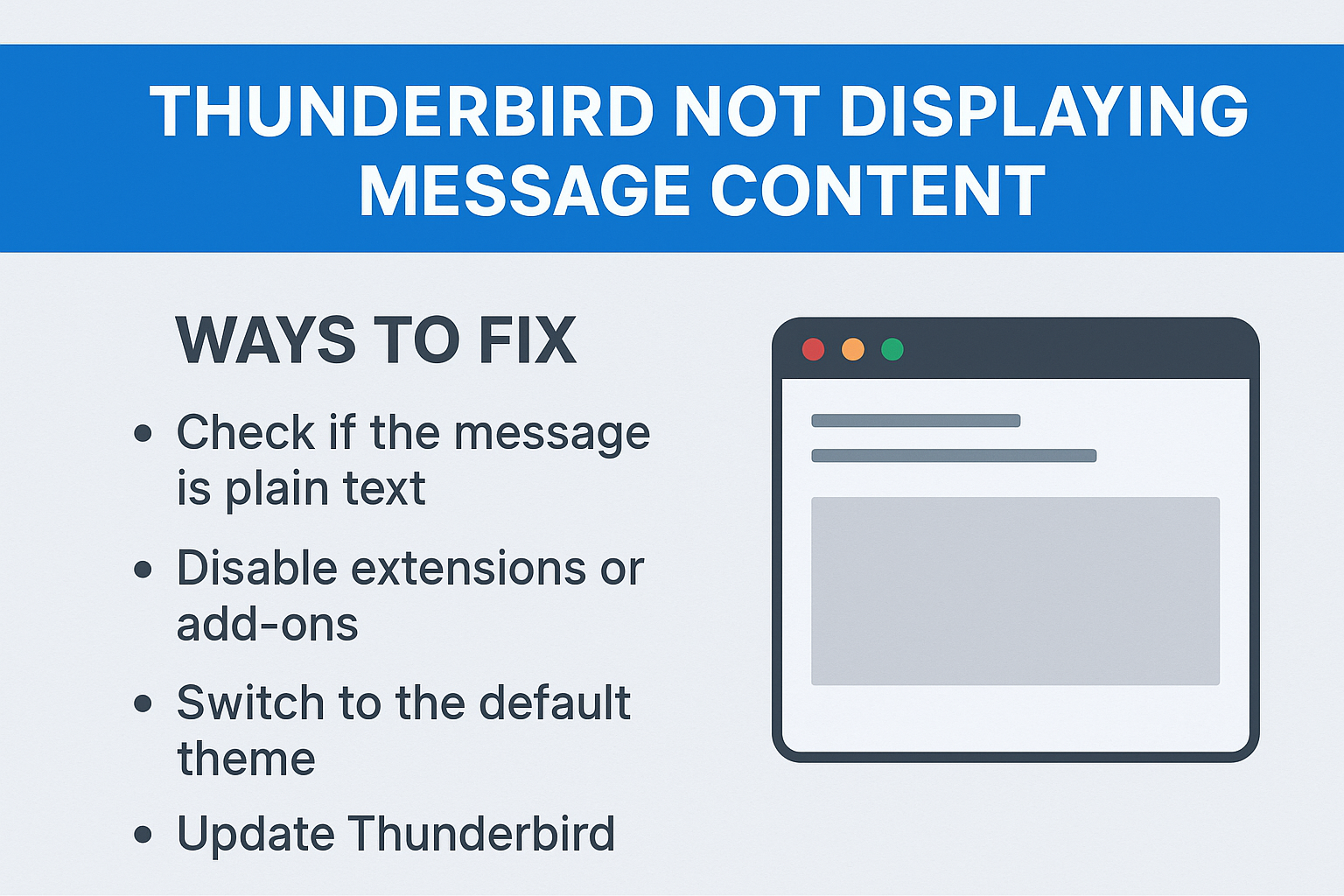
Overview: Mozilla Thunderbird is a free email client which works for all operating systems. It provides a way to manage multiple email profiles inside it. Also, the add-ons are available to enhance your email work. But a problem that many of us experience is that although the emails are visible inside the Message folders, the Thunderbird inbox not showing messages problem occurs.
In case you can see the subject lines but not the body of the message is blank or incomplete, this is related to the Thunderbird configuration, add-ons, or damaged mailbox files. We will discuss the sources of this problem, the manual fixes, their limitations and finally the best practice to avoid this happening again.
Also Read: ImportExportTools Add-on For Thunderbird
Why Thunderbird Not Displaying Message Content?
Here are the reasons why Thunderbird inbox is not showing messages. Let’s see those factors:
-
Thunderbird uses msf files to track emails. If these files are corrupted or missing, the email content may not display
-
At times, an add-on can also create problem in showing messages
-
Some antivirus also blocks parts of the email like images
-
Incorrect IMAP/POP or sync settings can prevent Thunderbird from downloading full emails
-
An old version of Thunderbird may stop you from showing message content
-
In fact, large MBOX files or corrupted MBOX files can also be the reason behind not loading emails
-
There is a privacy feature “Thunderbird blocks remote content” is enabled by default in Thunderbird
Manual Methods to Fix Thunderbird Inbox Not Showing Messages
Here are the solutions you can try one by one to fix this Thunderbird issue.
1. Rebuild the Index .msf File
-
Firstly, right-click on the folder like your inbox, sent, etc.
-
select Properties.
-
Click Repair Folder.
-
Reboot Thunderbird and see if the message body is now showing.
This will make Thunderbird rebuild the.msf file and many times that will solve your problem with missing content.
2. Disable Add-ons and Themes
-
First, go to Tools > Add-ons and Themes.
-
From there, disable any unknown extensions, if there.
-
Try to start up Thunderbird in Safe Mode (Help > Restart with Add-ons Disabled).
-
Once the issue is solved, delete the offending add-on for good.
3. Check Account Synchronization Settings
-
Click on Tools > Account Settings.
-
In the Synchronization & Storage area, make sure “”Keep messages for this account on this computer'' has been selected
-
Enable the setting to sync emails from your IMAP account
-
Restart Thunderbird Test by opening an email
4. Allow Remote Content
-
Open an email with no contents.
-
At the top of the message area, you will see the line “To protect your privacy, Thunderbird has blocked remote content in this message.”
-
View to Options > Show Remote Content in This Message.
-
Or go to >>> Preferences > Privacy & Security > Remote Content <<<
5. Temporarily Disable Antivirus
-
Try to disable antivirus to see the difference
-
If it’s there, then add Thunderbird to its exception list.
6. Update Thunderbird
-
Click open Help > About Thunderbird.
-
If there is an available update, download and install the update.
-
Close and reopen Thunderbird and retest the emails.
7. Compact and Repair Mailbox Folders
-
In Thunderbird navigate to: File > Compact Folders.
-
This will somewhat clean up and small corruptions during sync.
-
For problems that won't go away, fix the database manually by deleting the .msf file of the problem directory, and then restarting Thunderbird.
8. Reconfigure the Account
-
If you want to unspam within Thunderbird, then in Thunderbird, delete the offending account
-
Fill the details again of your IMAP or POP account from your email provider
-
Now, re-sync your emails to get your entire message back
Limitations of Manual Fixes
Although above methods are effective in many cases, they also have some drawbacks:
-
Removing or fixing folders will cause loss of local stored emails if not backed up.
-
Otherwise a rebuild of large mailboxes can take forever.
-
Corruption can come back even after repairs if the size of the mailbox becomes too excessive.
-
Some of the methods also involve going to profile directories that non-technical individuals may find difficult to understand.
-
If the issue is caused by an antivirus or server-side issue, the fixes in Thunderbird do not necessarily solve the problem.
Thunderbird Inbox Not Showing Messages - Alternative Way
After following all the manual methods given above and your problem of Thunderbird not displaying message content is still not solved. Then, this could be due to invalid or inaccessible MBOX files. When your email becomes corrupted, then you may not be able to repair it using manual techniques. Here comes SysTools Thunderbird Import Wizard which allows you to easily import MBOX to Thunderbird within a few easy steps without losing any details.
Conclusion
When you find an error like “Thunderbird inbox not showing messages”, then your work stops suddenly and you can’t go ahead. This is because of corrupted files, unknown add-ons, or syncing problems. You can resolve it by following simple manual methods mentioned above. While following any of these steps, try to take backup first to avoid data loss. So that you can easily restore your profile from the backup in case something goes wrong.

 English
 Arabic
 French
 Spanish
 Portuguese
 Deutsch
 Turkish
 Italiano
 Russian
 Romaian
 Portuguese (Brazil)
 Greek
Greek